Last updated: November 19, 2026
Key Takeaways
- A freelance backup system should protect the files that would stop work, miss deadlines, or create tax problems.
- Build a freelance data backup system by mapping files, choosing one cloud drive and one external hard drive, then automating copies.
- If the laptop fails at 4 p.m., the backup still has to be ready.
- Naming and retention rules keep backups usable by making restores easier to find.
A freelance data backup system for business records should protect your client files, tax records, contracts, invoices, and working drafts in at least two places: one cloud drive and one local backup on an external hard drive. The goal is simple—if a laptop dies, a file gets deleted, or a cloud account is locked, the work still exists somewhere you can reach.
What a freelance backup system needs to protect

A freelance backup system needs to cover the files that would stop work, cause a missed deadline, or create a tax headache if they vanished. That usually means client files, proposal drafts, signed contracts, invoices, tax records, scanned receipts, project notes, export files, and anything stored in a password manager that protects access to those records.
The easiest way to think about it is by loss type. A single deleted folder can usually be restored from trash or version history. A stolen laptop or broken SSD needs a full-device recovery path. A locked cloud login needs a second place where the same documents live. That is why a one-copy setup is weak, even if it feels tidy.
A practical setup starts with the 3-2-1 rule: 3 copies of your data, on 2 different types of storage, with 1 copy off-site. For a solo freelancer, that often means the working copy on a laptop, a cloud drive copy, and an external hard drive copy stored away from the laptop. The external drive might be a 1 TB or 2 TB USB drive, depending on how much media and archived work you keep. The cloud side can be something like Google Drive, Dropbox, or OneDrive, as long as it is actually used as a backup layer and not only as a place to leave current files. For guidance on backup basics, see the U.S. Cybersecurity and Infrastructure Security Agency and NIST. CISA | NIST
This setup is not for someone who wants a single “set it and forget it” button with no maintenance. It still needs naming rules, retention rules, and a monthly check. It is also not the same as bookkeeping software or a full records-management program. The system’s job here is operational risk control: keep the files available, recoverable, and organized enough to restore fast.
How do I build a freelance data backup system step by step?
You build a freelance data backup system by mapping your files, choosing one cloud drive and one external hard drive, then automating copies so you are not depending on memory. The procedure below is the core setup for a solo business.
- List the folders that matter most. Start with client files, invoices, contracts, tax records, scanned receipts, and password manager exports if you keep them. Put them in one top-level folder called something plain, such as
Freelance_Backup_Source, so you are not hunting through random desktop files later. - Choose a cloud drive as your off-site copy. Pick a service that syncs desktop folders or supports scheduled backup, then turn on version history if the plan includes it. The result should be that a deleted document can usually be recovered without touching the laptop.
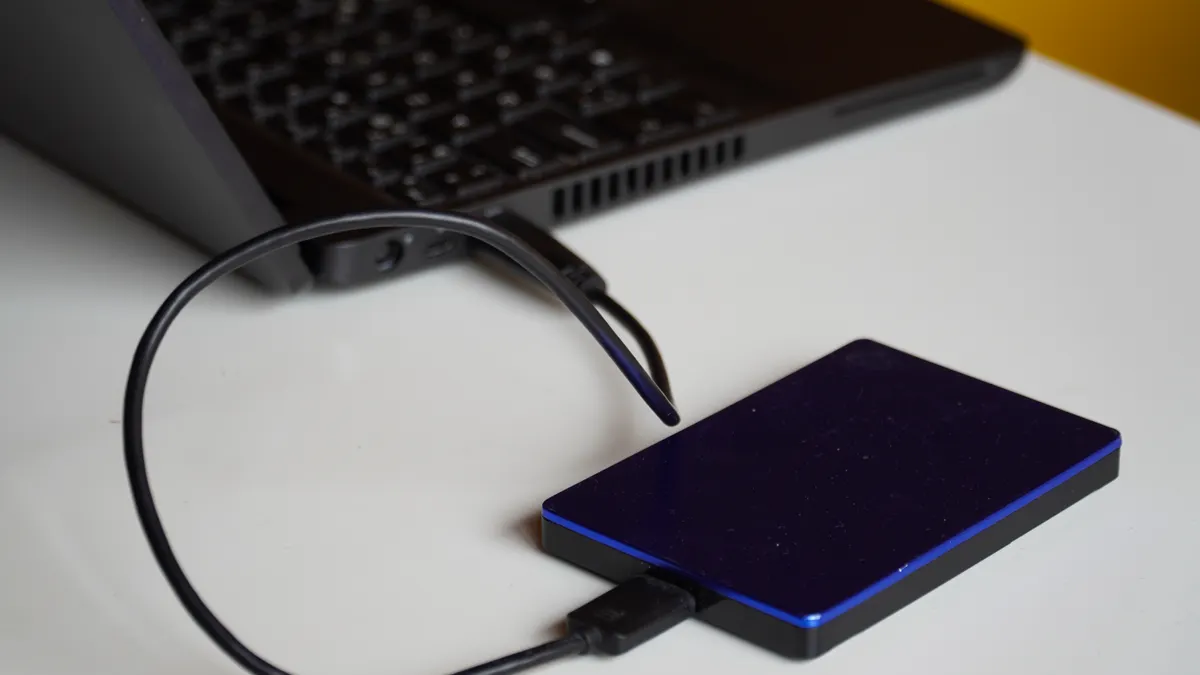
- Buy or repurpose an external hard drive. A USB 3.0 or USB-C external drive is enough for many solo operators; 1 TB is common for light document work, while media-heavy work often needs more. Label it clearly, then keep it unplugged when not backing up so ransomware or accidental edits do not spread to it.
- Set a schedule for automatic copies. Use daily sync for active project folders and weekly full backups for the whole working directory. Many backup apps let you choose 24 hours, 7 days, or a custom interval. The result should be that current files move without manual dragging.
- Create a file naming rule before the folders fill up. Use dates in ISO order, such as
2026-03-15_ClientName_Invoice_001.pdf, so files sort naturally and older versions do not get buried under names like “final-final.” - Test a restore, not just a backup. Pick one PDF and one spreadsheet, restore them from the cloud drive and then from the external hard drive. You want the recovery path to work in under 10 minutes for small files, even if the full archive takes longer.
- Write the backup routine down in one page. Include the app name, the drive label, the cloud login location, and the monthly check date. If someone else ever needs to help you, they should not have to guess where the files live.
The biggest mistake is treating sync as backup. Sync copies mistakes fast; if a file gets corrupted or deleted and the change syncs before you notice, the cloud may faithfully mirror the damage. That is why version history, a second storage type, and a restorable local copy matter. A simple folder copied to the same machine is not a backup system, so if you are unsure how to set up the right mix, consult a qualified IT professional or follow CISA’s backup guidance. CISA
Which files should live in cloud storage, and which should stay local?

Cloud storage should hold current working files, sharable client deliverables, and a copy of anything you cannot afford to lose; the external hard drive should hold the same set plus older archives. If the laptop fails at 4 p.m. on a Tuesday, the cloud copy gets you back to work fastest, while the external hard drive gives you a second recovery path if the cloud account is unavailable.
A clean split helps. Keep active project folders in the cloud drive so they sync throughout the day. Keep your local source folders on the computer or an attached workspace, then let the backup tool mirror them to the external hard drive every night. If you work on large files, like design assets or video exports, it is reasonable to store only the latest working version in the cloud and keep older renders on the hard drive to save bandwidth and avoid upload delays.
Tax records and client files deserve special handling. Tax records should be stored in a folder with year labels, such as 2025_Tax and 2026_Tax, so you can find them quickly during a review. Client files should be grouped by project and date, not by vague labels like “misc.” That matters when you need to answer a question from a client six months later or pull a signed contract in a hurry.
A cloud drive is not automatically enough on its own. It is convenient, but convenience is not the same as resilience. If the account is frozen, the password manager is unavailable, or a sync conflict overwrites the wrong version, your only copy is suddenly fragile. The cloud layer works best as one of two backups, not as the whole plan.
What naming and retention rules keep the backup usable?
File naming and retention rules keep the backup usable because they turn a pile of copies into something you can actually restore. A backup that cannot be searched or aged out is just storage, and storage gets messy faster than most people expect.
Use one naming pattern across everything: date, client or project, document type, version. ISO dates like 2026-01-09 sort correctly whether the folder is viewed on macOS, Windows, or inside a cloud drive. Add short, stable terms such as Proposal, Invoice, Contract, or TaxReceipt. Avoid punctuation that breaks in some systems, and keep version tags simple: v1, v2, approved, or signed. That one rule can reduce duplicate hunting later.
Retention is the second half of the problem. Keep the current working set easy to reach, but do not let older copies pile up forever in the same folder. A common approach is to keep daily versions for 7 days, weekly versions for 4 weeks, and monthly archives for 12 months. That is a practical pattern, not a legal rule, and it helps you recover from a bad edit without filling a 500 GB drive with near-identical files.
Do not use “final” as a file strategy. It creates confusion when three different files all claim to be final. A better method is to mark the approved file by status and date, such as 2026-02-04_ClientA_Contract_signed.pdf. The advantage is obvious during a deadline, and the downside is small: you have to be consistent.
A plain naming and retention policy is also what makes handoff possible. If a client asks for a copy or an assistant needs to find a receipt, they should not need to decode your personal habits. The system should survive a bad month, not just a good one.
How do access control and password management fit into backups?
Access control and password management protect the backup from becoming a new point of failure. If the drive is readable by anyone who picks it up or the cloud login sits in a browser with weak protection, the backup may be intact but still unsafe.
Start by limiting who can open the folders. On a single-user laptop, that means using a separate OS login with a strong password and full-disk encryption such as FileVault on macOS or BitLocker on Windows. For shared machines, give each person a distinct user profile so client files do not sit in a public desktop folder. For cloud storage, turn on multi-factor authentication and keep recovery codes somewhere offline, not in the same synced folder as the files.
The password manager matters because backup systems depend on credentials too. Store cloud passwords, backup app credentials, and recovery codes in the password manager rather than in a notes app or a text file on the desktop. If the password manager allows emergency access or a printed recovery sheet, keep that copy in a physically separate place, such as a locked drawer. That single step can save hours if you are locked out after a laptop replacement.
There is a trade-off here. Stronger access control usually means one more login step, and that can feel slower. It is worth it. A backup that opens too easily can be damaged too easily, especially if a shared browser, old sync token, or unattended laptop is involved.
For work tied to contracts, client confidentiality, or sensitive tax records, access control is not optional. If you are unsure how to set up encryption, recovery keys, or multi-factor authentication on a specific platform, the platform’s support pages or a qualified IT professional can help. The risk is not theoretical: losing access to the backup because the credentials were never documented is as bad as losing the files themselves.
How often should a freelance backup be checked and restored?
A freelance backup should be checked monthly and restored on purpose at least once every quarter. A backup that has not been tested is a hope, not a system.
A monthly check can be short. Open the cloud drive, confirm the latest sync timestamp, plug in the external hard drive, and verify that the newest project folder copied across. Then inspect one small PDF and one spreadsheet for corruption or missing pages. That 10-minute routine catches silent failures early, before a deadline exposes them.
Quarterly, do a full restore drill. Pick a folder from 30 to 90 days ago and bring it back to a separate location, not over the original source. This matters because a true restore test shows whether the folder structure, filenames, and permissions survive the trip. If the restore is messy, the backup system is not ready yet.
Two common failure points deserve attention. First, backup software can stop because a drive letter changed or a laptop slept during the scheduled window. Second, cloud services can quietly fill up, and a full storage quota can block new uploads without an obvious warning. Both are easy to miss until the day you need the file. A monthly review makes those problems visible while you still have time.
This is also the point where a freelancer should decide what is not worth backing up forever. Drafts, temporary exports, and duplicate renders can be kept for a short window and then removed. That keeps the system fast and the restore process sane. The backup should preserve work, not trap every accidental download since 2021.
If you want a broader setup for the rest of your solo operation, the freelance business setup hub is the right place to connect this system to your other tools and routines.
What a good freelance backup system looks like when it is done
A good freelance backup system is boring in the best way. The same folder structure appears on the laptop, the cloud drive, and the external hard drive; the latest files are easy to identify; and a restore takes minutes instead of panic.
The finished setup usually has five parts: one working folder structure, one cloud sync layer, one unplugged local backup, one naming rule, and one monthly test. If all five exist, the system can survive the most common problems: accidental deletion, laptop failure, cloud lockout, and version confusion. If any one of them is missing, the system is weaker than it looks.
The best sign that it is working is not that you think about it every day. It is that you do not have to. A client file can be found quickly, a tax record can be opened by date, and a damaged draft can be restored from either the cloud drive or the external hard drive. That is what a freelance data backup system is for: keeping the work alive long enough for you to keep earning.
What files should freelancers back up?
Freelancers should back up the files that would be expensive or time-consuming to recreate. That includes client files, contracts, invoices, tax records, receipts, project notes, and any exported deliverables you may need to resend. A password manager is also worth protecting because it holds the keys to the rest of the system.
How often should i back up business files?
Back up active files daily and run a fuller copy weekly. Daily backups protect you from work lost in the last 24 hours, while weekly copies give you a cleaner recovery point if a file gets corrupted or overwritten. A monthly restore test is the part many people skip, but it is the part that proves the system works.
Is cloud storage enough for records?
Cloud storage is helpful, but it is not enough by itself for a reliable records system. A cloud drive can fail, sync the wrong version, or become unavailable when you need it most, so an external hard drive gives you a second recovery path. The safer setup is cloud plus local backup, not cloud alone.
Drafted with AI; not yet reviewed by a person.