
Last updated: November 19, 2026
Quick Answer: 1 clear system keeps client data and project files organized across multiple jobs — one client folder, one project folder, and one archive. That makes client data, project files, deliverables, and the client archive easy to find later.
Key Takeaways
- Freelancers should sort files by client, then project, then stage.
- Separate live work from finished jobs so folders stay clear.
- Use names that show client, project, version, and date at a glance.
- Keep files findable with searchable storage, an archive, and weekly cleanup.
This guide shows the folder structure, naming rules, and retrieval habits that keep multiple jobs from turning into one messy cloud storage dump. It also clears up what belongs in the active project folder, what moves into the archive, and how to hand off files without losing track of them.
What a freelancer file organization system needs to do
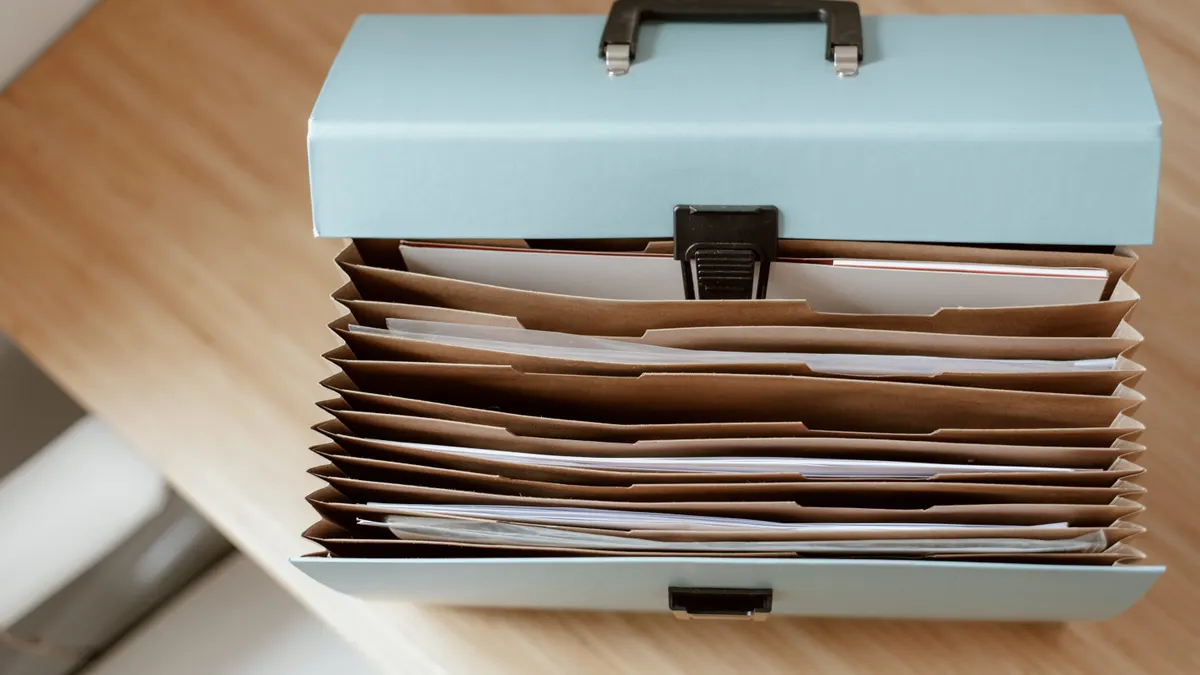
A freelancer file organization system needs to answer one question fast: “Where is the right file for this client right now?” If the answer takes more than 30 seconds, the system is already failing.
Picture this: you’re juggling three clients, one revision round, and a deliverable due at 4 p.m. You need the latest draft, the brand notes, and the final export without digging through 14 random folders. That’s the job a clean system does.
The system should do four things well:
- Keep each client separated.
- Make current project files easy to spot.
- Preserve a clean client archive after delivery.
- Let you find old work by name, date, or project type.
A good setup does not need fancy software. Cloud storage, a laptop folder structure, and a naming rule are enough for most freelancers. Google Drive, Dropbox, and OneDrive all work if you use them the same way every time. According to Google Drive Help, Dropbox Support, and Microsoft Support, file search and folder organization work best when names are consistent.
Here’s the catch: a system with more subfolders is not automatically better. It’s the one you can use on a tired Friday afternoon without thinking. If a folder tree needs a diagram to decode, it’s too clever.
Use a single top-level folder for each client and keep the same inside structure for every job. That consistency matters more than the app.
How should freelancers organize client files?
Freelancers should organize client files by client first, then by project, then by stage. That keeps mixed jobs from colliding and gives every file a home you can guess before you search.
Picture this: you open cloud storage after a month away and need one invoice support file, one copy deck, and one final PDF. If each client has the same folder map, you don’t have to remember where you put things last time.
A simple structure looks like this:
- Client folder — one folder per client, named with the client name and a short identifier if needed, such as
Acme StudioorAcme Studio - 2026. - Project folder — one folder per job inside that client folder, such as
Website CopyorProduct Launch Emails. - Stage folders — small folders for the work flow, like
01 Brief,02 Working Files,03 Review,04 Final. - Archive folder — one place for completed work, old drafts, and handoff files after approval.
- Reference folder — brand guides, style notes, assets, and anything you reuse during the project.
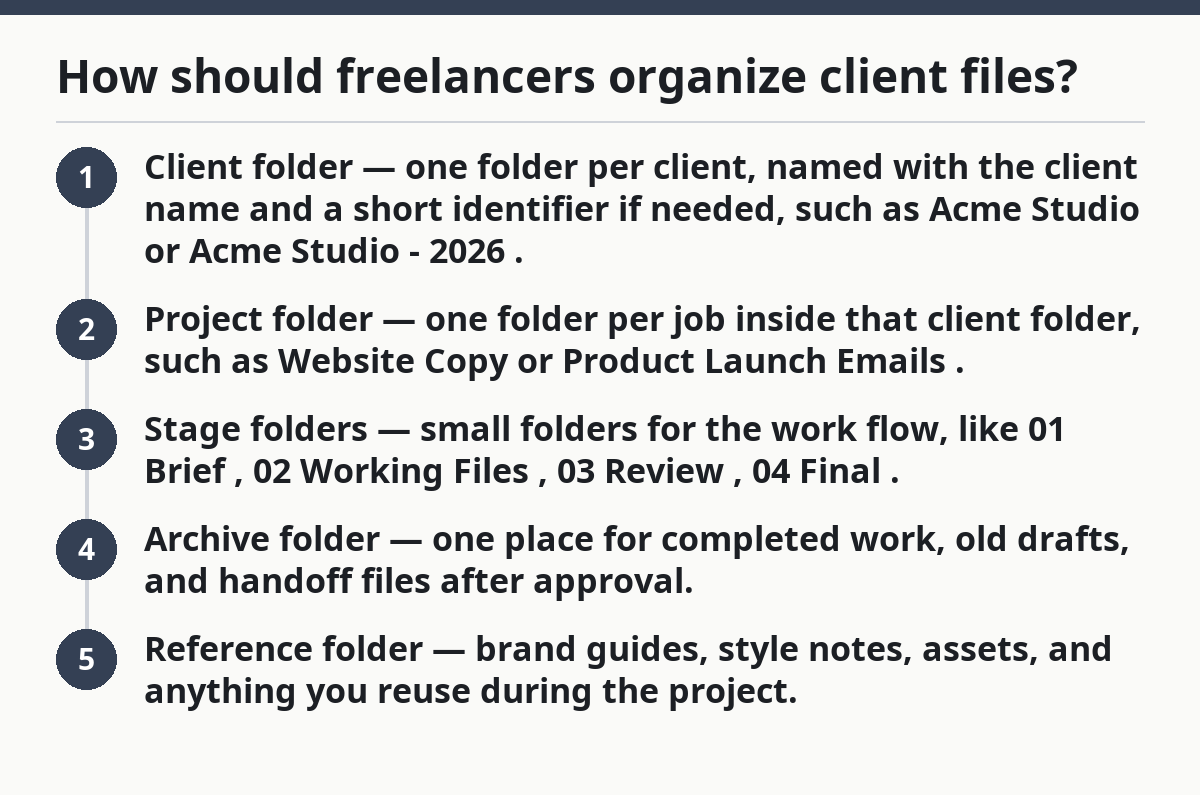
That structure keeps the live work path short. You know where the current draft lives, and you know where the finished files go when the job ends.
Use the same four-stage layout across every client if you can. A client folder that always starts with the brief and ends with final files is usually easier to scan than a system that changes shape every week.
The folder structure that keeps active work and archives apart

The right folder structure keeps active jobs and completed jobs from sitting in the same pile. Active work stays visible; finished work moves out of the way but remains searchable.
Picture this: two clients ask for changes on the same day, and you also need to find a file from last quarter. If active work and archived work live together, you’ll waste time opening the wrong version or second-guessing the latest draft.
Use two lanes:
- Active
- Archive
Inside Active, keep only current work that still needs edits, approval, or delivery. Inside Archive, keep anything closed out: final deliverables, approved exports, and the handoff copy you may need later.
A clean active folder might look like this:
Client Name / Project Name / 01 BriefClient Name / Project Name / 02 Working FilesClient Name / Project Name / 03 ReviewClient Name / Project Name / 04 Final
Client Name / Archive / 2026 / Project NameClient Name / Archive / 2025 / Project Name
The year folder helps when one client comes back every quarter. It also prevents the archive from becoming a single long list of old jobs, which can make retrieval harder; for regulated or sensitive work, consult a professional and follow your storage provider’s guidance.
One rule helps most: when a project closes, move the whole project folder to the archive, not just the final PDF. That way the brief, notes, and approved version stay together.
The benefit is practical: that archive becomes a record you can reuse. Old drafts, scope notes, and approved assets often save time on repeat work.
What file naming rule actually works across multiple jobs?
A file naming rule works when it tells you the client, the project, the version, and the date without opening the file. That’s the standard worth using.
Picture this: you’ve got final_final2_reallyfinal.pdf and Acme_WebsiteCopy_v04_2026-03-18.docx sitting side by side. Only one of those names helps you later. The other one is a joke told by stress.
Use a naming pattern like this:
Client-Project-Document-Type-Version-Date
Example:
Acme-WebsiteCopy-HomepageDraft-v03-2026-03-18.docx
Keep the parts in the same order every time. Use one date format across your system, such as YYYY-MM-DD, because it sorts well in folders. Avoid spaces if your storage tool or handoff process tends to rename files badly. Hyphens are usually safer than punctuation-heavy names.
Version numbers matter too. Use v01, v02, v03 for drafts. When a client approves a file, label it clearly:
v05-ApprovedFinalClientApproved
That keeps the approved file from getting buried under draft clutter.
A few naming habits save real time:
- Do not use
final_final. - Do not leave files named
Untitled. - Do not mix date styles in the same folder.
- Do not put the version at the end one day and in the middle the next.
The truth is, naming rules work best when they feel slightly boring. Boring scales.
Naming examples by file type
A naming system becomes easier to keep when each file type has its own pattern. That lets you sort deliverables, notes, and source files without guessing.
Use these patterns:
- Draft document:
Client-Project-Topic-v02-2026-03-18.docx - Review PDF:
Client-Project-Topic-ClientReview-v04-2026-03-20.pdf - Final deliverable:
Client-Project-Topic-Final.pdf - Source file:
Client-Project-Topic-Source-v04.psdor.ai - Meeting notes:
Client-Project-Notes-2026-03-18.txt
Keep one version of each file type in the active folder and move older versions out of sight once the project is done. That usually prevents several “final” files from competing for attention; for high-stakes workflows, consult a professional and follow the rules of your storage or records system.
How do you keep project files easy to find later?
You keep project files easy to find later by using searchable storage, a consistent archive, and a short weekly clean-up. Search works best when names are predictable.
Picture this: a past client emails you six months after delivery and asks for a file you sent in a hurry. If your archive is searchable by client, project, and date, you can find it in under a minute.
Use cloud storage that indexes file names well. Google Drive, Dropbox, and OneDrive all support search, but search only helps if your names are clean. A file called Client-Project-Topic-v03 is findable. A file called IMG_4829 is not.
Build retrieval habits around the calendar:
- Daily: save files into the correct active project folder before closing the laptop.
- Weekly: remove duplicates, rename stray files, and check that the current draft is in the right place.
- At delivery: move final files into the archive and label the closed folder clearly.
- At month-end: scan the archive for anything that should be grouped by year or project type.
Searchable storage works best when you remember that folders do part of the job and search does the rest. A smart system doesn’t depend on memory alone. Google Drive Help, Dropbox Support, and Microsoft Support all note that search is strongest when file names are consistent and specific.
Two tools help here:
- Pinned folders or shortcuts for your current clients.
- Starred or favorited files for the latest approved deliverable.
That mix gives you speed now and order later. No hunting. No guessing.
What should go in a client archive, and what should stay out?
A client archive should hold only closed work, final deliverables, and the records you may need to reuse. It should not hold every draft, temp file, or half-finished export from the last six months.
Picture this: you finish a project and feel tempted to leave everything where it is “just in case.” Three months later, that habit turns the active folder into a landfill of old versions. The archive exists so the active folder stays useful.
Put these in the archive:
- Final deliverables
- Approved revisions
- Signed-off handoff files
- Final source files if the client expects them
- Reference assets tied to the completed project
Leave these out of the archive when possible:
- Temporary exports
- Duplicate drafts
- Cached files
- Random downloads
- Old assets unrelated to the final handoff
The archive should be a record, not a junk drawer. If you keep too much, you lose the point of archiving. If you keep too little, you end up rebuilding work from scratch.
A smart archive also helps with repeat clients. When a client returns after 9 months, the old project folder should tell the story quickly: what was delivered, what was approved, and where the handoff files live. That makes reopening the work far easier.
This is also the place to keep a single readme note for yourself if the project was unusual. A plain text file with “final file location,” “handoff date,” and “special notes” can save time later.
Common mistakes that make file chaos worse
The biggest mistake is treating every job like a one-off. That creates a new folder style for each client, and then nothing is where you expect it.
Picture this: one project uses dates in the folder name, another uses dates in the file name, and a third uses neither. Now every search becomes a manual hunt. That costs time, and time is the whole point.
Common mistakes and what they cost:
- No version rule: you overwrite good drafts or send the wrong one.
- Mixed naming styles: search becomes unreliable.
- One giant downloads folder: files vanish under clutter.
- Keeping active and finished work together: you grab the wrong file.
- No archive cleanup: old work becomes harder to trust.
Do this instead:
- Pick one folder pattern and use it for every client.
- Use one date format everywhere.
- Save every file into the right project folder before you stop working.
- Move closed projects to the archive the same day you close them.
- Keep the current draft in one obvious place, not in three tabs and a desktop.
Another mistake is relying on memory for retrieval. That works for one client. It fails fast when you have five or six moving jobs. A system should reduce memory work, not demand more of it.
The best systems are plain. They don’t ask you to remember special cases. That’s why they keep working when you’re busy.
How this fits into a freelancer’s wider operations
A file system supports your income work because it keeps project handoff, delivery, and follow-up from getting tangled with everything else. It belongs beside the rest of your freelance operations, not on top of them.
Picture this: you need a deliverable for a paying client, a revision note from last week, and the last approved version for a repeat job. If your folder system is solid, you can move from brief to delivery to archive without stopping to think about where any of it lives.
This matters even more when you work across several clients at once. A clean client folder and archive setup reduces missed files, duplicate work, and last-minute scrambles. It also makes it easier to pass project files to a collaborator or to hand off a finished job cleanly.
The system doesn’t need to be perfect on day one. It needs to be consistent over 30 days so the habit sticks. After that, you can tighten the structure, add shortcuts, or refine the archive if a pattern keeps repeating.
For the wider payment and admin side of freelance work, the hub on freelance income and payment operations is the right place to connect the rest of the workflow. This page just keeps the files in order so the money side has a clean trail to follow.
FAQ
How should freelancers organize client files?
Freelancers should organize client files by client, then by project, then by stage. That gives every file a predictable home and keeps active work separate from finished work. A top-level client folder with a repeatable project layout is easier to maintain than a different system for every job.
What file structure works best for freelance projects?
The best file structure is one client folder, one project folder, and a small set of stage folders such as brief, working, review, and final. That setup keeps current deliverables close at hand and makes archiving simple when the job ends. It also works well in cloud storage.
How do I keep freelance files easy to find?
Keep freelance files easy to find by using the same naming rule, one date format, and a clean archive. Search tools work best when file names include the client, project, and version. A weekly cleanup also helps by removing duplicates and moving completed work out of the active folder.
Drafted with AI; not yet reviewed by a person.